The Sticky Scrolling Effect lets you set an element, container, or widget as sticky, so that it sticks to the top or bottom of the screen as visitors scroll.
Note: Instructions vary depending on whether you are using Elementor v4 (Atomic Editor) or Elementor v3 (Classic Widgets & Containers).
Elementor v4 (Atomic Editor)
- Open a page in the Elementor Editor and select the element you want to make sticky.
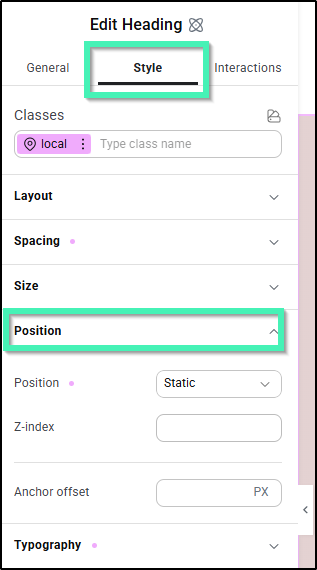
- In the left panel, click the Style tab and expand the Position section.
- Set the Position dropdown menu to Sticky.
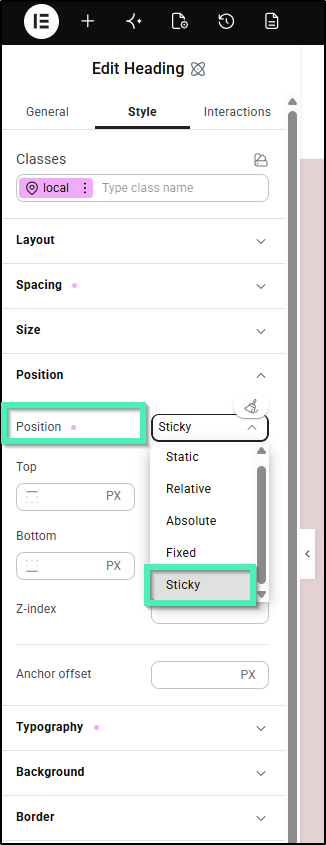
- Set the following options:
- Top / Bottom: Enter an offset value (e.g.,
24PXor1.5REM) to adjust where the element locks relative to the top or bottom of the screen. - Z-index: Increase this value (e.g.,
10or999) if you need the sticky element to float above other overlapping content on the page. - Anchor offset: Define custom pixel distances for anchor link targets if needed.
Elementor v3 (Classic Widgets & Containers)
Create Scrolling Effect
- Open a page in the Elementor Editor.
- Go to the container/widget where you want to implement sticky scrolling.
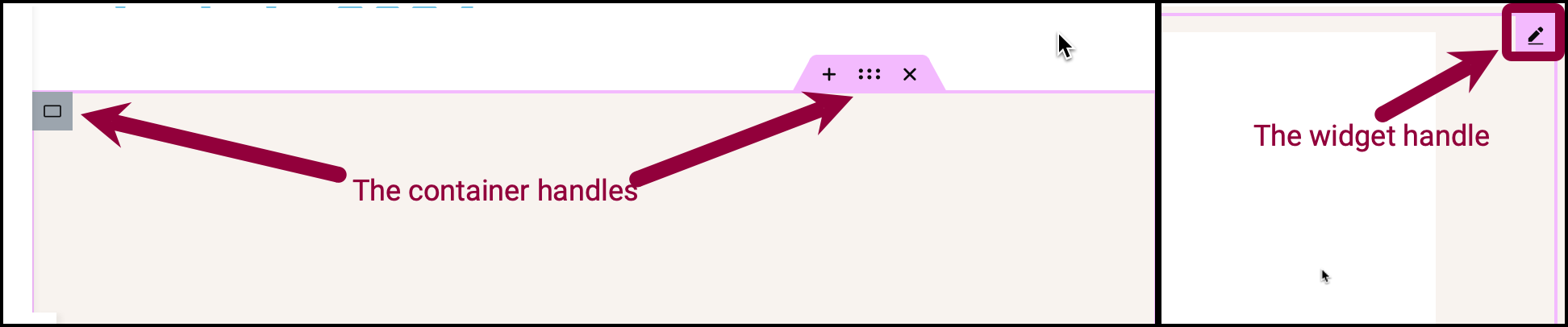
- Click the handle to edit the element.
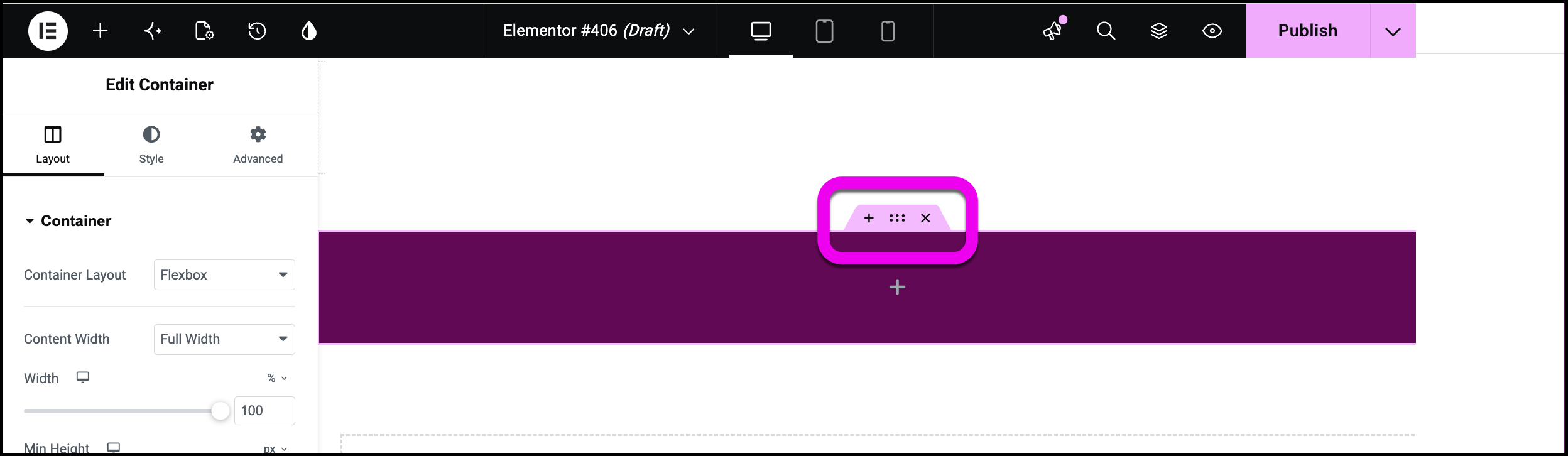
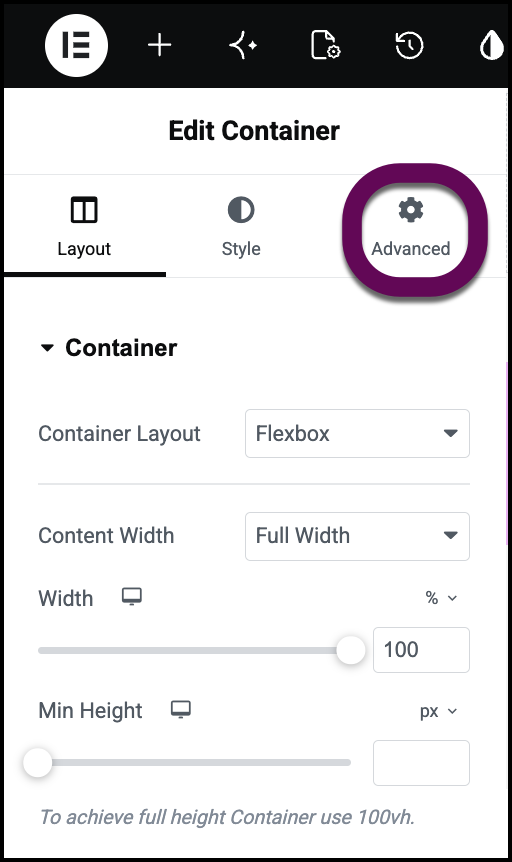
- In the panel, click the Advanced tab.
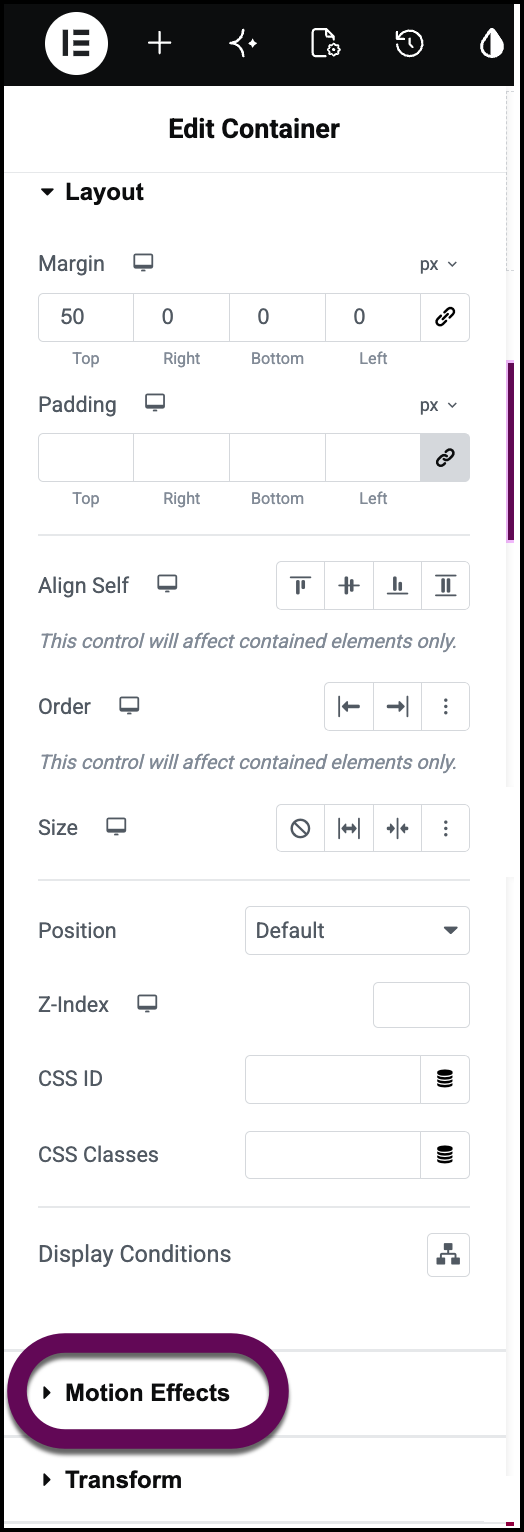
- Expand Motion Effects.
- Use the Sticky dropdown menu to select an option. Following are the options:
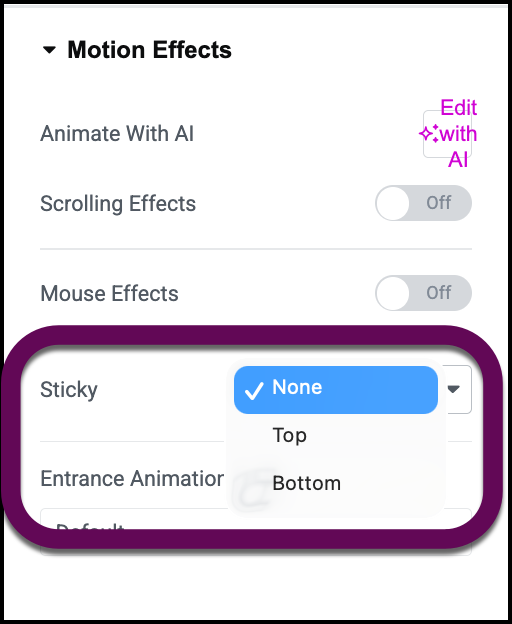
- None – This removes the sticky header. Do not choose if you want to create a sticky header.
- Top – Choose to stick your header to the top of the screen.
- Bottom – Choose to stick your header to the bottom of the screen.
- In Sticky On, choose the devices your section should be sticky. Following are the options:
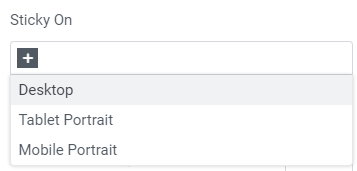
- Desktop – Sticky on desktop/laptops.
- Tablet Portrait – Sticky on tablets.
- Mobile Portrait – Sticky on mobiles.
- Set the following: (Displays only if Sticky is set to Top or Bottom)
- Offset – It pushes the sticky element up or down by pixels.
- Effects Offset – This is the number of pixels the user must scroll before the sticky effect begins.
- Stay in Column – Toggle to Yes if you want the section to remain in its own column. For details, see Sticky Inner Section Improvements.
- Click Publish.
Note
Effects Offset affects only if CSS was added to the sticky element. For details, see How To Create A Sticky Transparent Header Effect.