If Elementor fails to load even with Safe Mode active, the root cause is rarely a third-party plugin or theme conflict. To fix it, increase your WordPress memory limit to 256M or 512M in wp-config.php, match your Site and WordPress URLs under General Settings, enable the Switch Editor Loader Method in Elementor settings, and check your browser console for security header (X-Frame-Options) or caching script blocks.
What Causes the Editor to Fail Loading Even in Safe Mode?
Safe Mode isolates third-party plugin and theme code to check for software conflicts. If the editor canvas still freezes on a white screen, gray screen, or spinning loader with Safe Mode enabled, the issue is happening deeper at the server, network, or database level:
- Server Resource Exhaustion: Insufficient PHP memory allocations halting core application scripts before they finish compiling.
- URL and Protocol Mismatches: Domain or protocol (
httpvshttps) discrepancies between your WordPress Address and Site Address triggering cross-origin (CORS) blocks. - Restrictive HTTP Security Headers: Server configurations like
X-Frame-Options: DENYpreventing the editor from loading its inner page preview iframe. - JavaScript Optimization Conflicts: Aggressive script caching, minification, or deferral services (such as Cloudflare Rocket Loader) blocking editor assets.
- Corrupted Data and Schema: Invalid widget settings or broken layout strings stored directly inside page data or theme builder templates.
How Do You Verify Server Memory and System Requirements?
Make sure your host meets the core requirements to run the editor smoothly:
- Access Configuration File: Connect to your server using FTP or your hosting file manager and open the
wp-config.phpfile located in your root directory. - Increase Memory Allocation: Add the following definition before the line that reads
/* That's all, stop editing! Happy publishing. */:
define('WP_MEMORY_LIMIT', '512M');
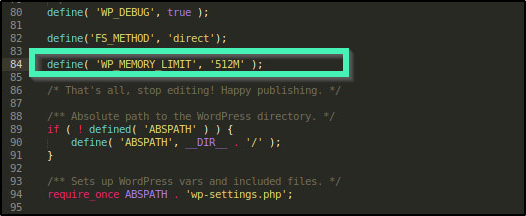
- Verify Server Environment: Navigate to Elementor > Editor > System Info in your dashboard to confirm your environment runs PHP 7.4 or higher, MySQL 5.6 or higher, and has active PHP cURL and GD modules.
How Do You Resolve URL Mismatches and Editor Loader Conflicts?
Domain mismatches and strict script execution rules are two common reasons the editor gets stuck loading:
- Check Site URLs: In your WordPress dashboard, navigate to Settings > General.
- Verify URL Alignment: Confirm that the WordPress Address (URL) and Site Address (URL) fields are completely identical, ensuring matching protocols (
http://orhttps://) and prefix paths (wwwvs non-www).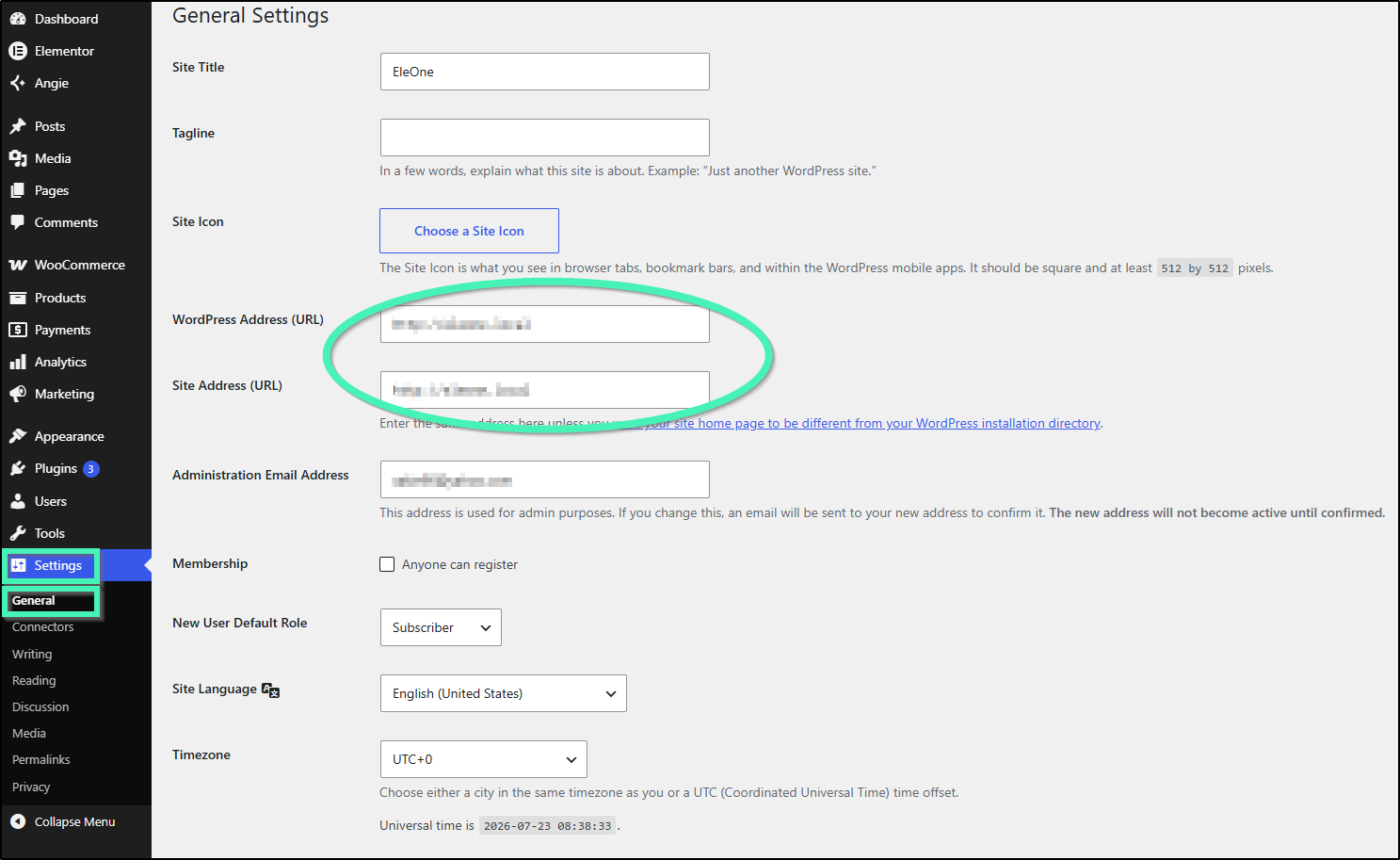
- Save Changes: Click Save Changes to update your site addresses.
- Navigate to Advanced Settings: Go to Elementor > Editor> Settings in your admin menu and select the Advanced tab.
- Enable Alternate Loader: Locate the Switch Editor Loader Method setting and toggle the dropdown menu to Enable.
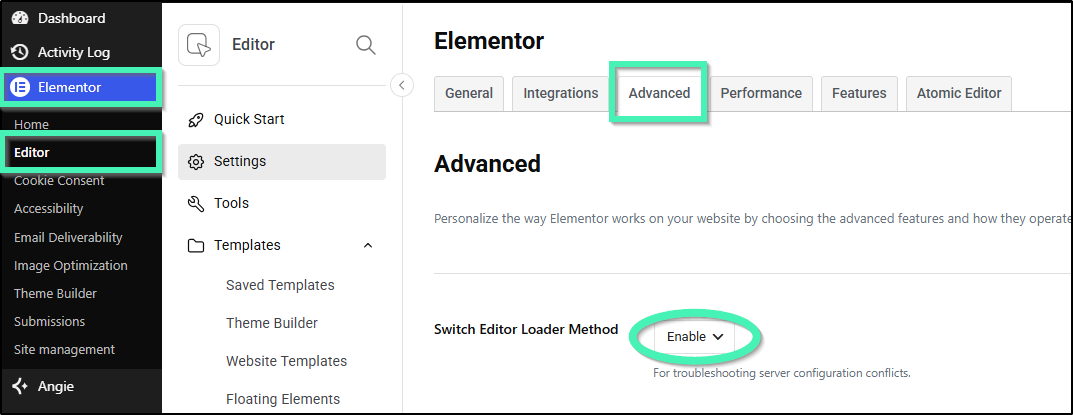
- Save and Retest: Click Save Changes, then re-open your page in Elementor to check if it loads.
How Do You Fix Gray Screen and White Screen Display Errors?
Whether you see a plain white screen or a gray screen, the issue usually stems from security header restrictions or script timeouts:
- Open Developer Tools: Right-click anywhere inside the unresponsive editor, select Inspect, and open the Console tab to look for red error messages detailing where the script failed.
- Evaluate Header Conflicts: If the console displays framing errors, request your hosting support provider to adjust your server’s
X-Frame-Optionsresponse header fromDENYtoSAMEORIGIN. - Adjust Container Routing: If running Docker or Traefik reverse proxies, append the following label parameter into your
docker-compose.ymlfile:
traefik.frontend.headers.customFrameOptionsValue: SAMEORIGIN
- Bypass Asset Aggregators: If using Cloudflare, navigate to your Cloudflare dashboard, open the Speed > Optimization tab, and toggle Rocket Loader to off (or configure a Page Rule excluding the editor URL query strings).
For a detailed solution, see Elementor And Cloudflare Rocket Loader. - Review System Error Logs: Navigate to Elementor > Editor > System Info in your dashboard, click Download System Info, and inspect the log file for logged PHP fatal errors.
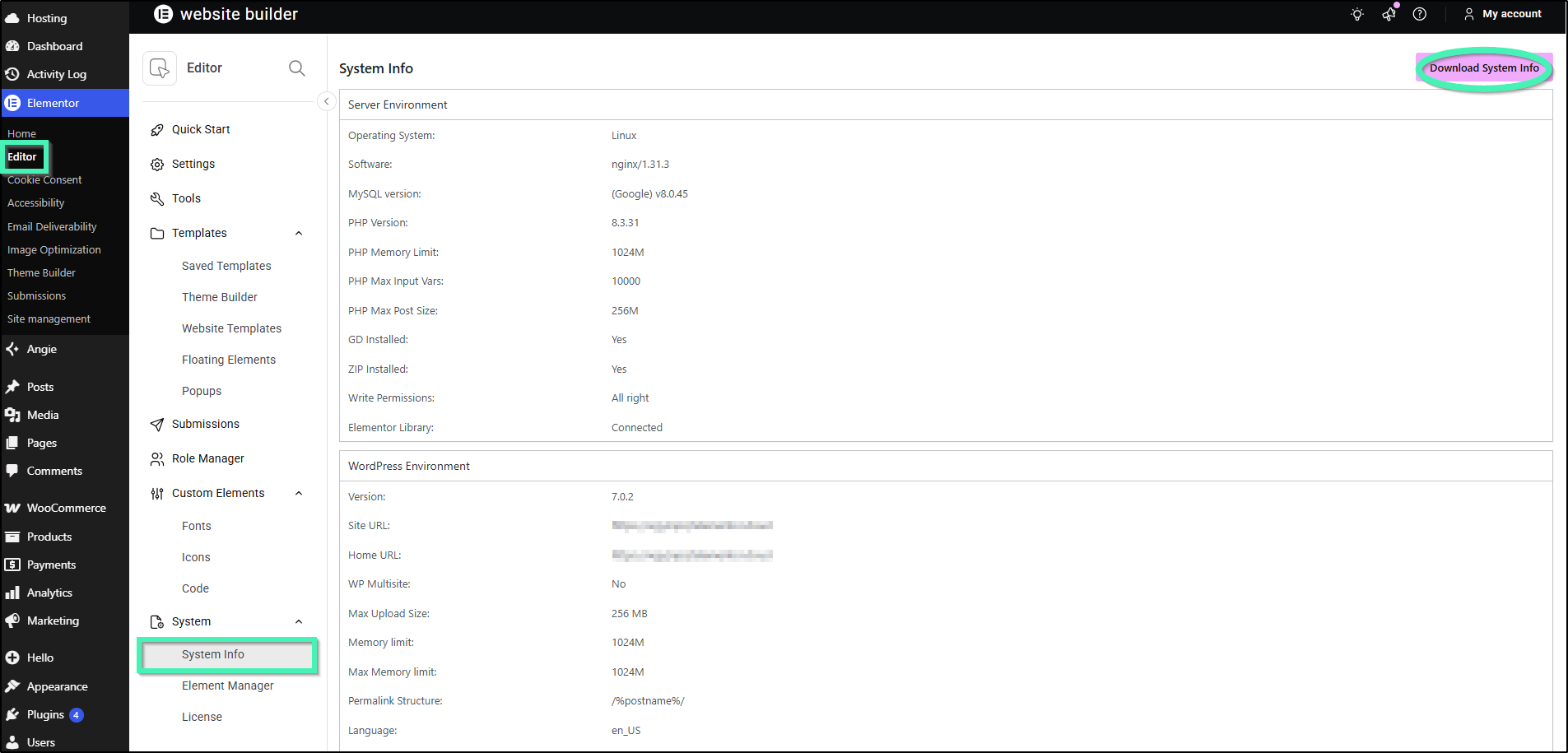
- Test Incognito Sessions: Launch a private browsing window with all third-party browser extensions and ad blockers disabled to isolate browser-side script interference.
How Do You Isolate Corrupted Widgets, Templates, and Plugin Conflicts?
If server and URL tweaks don’t work, the problem likely stems from broken page layout data, widget bugs, or an active plugin conflict:
WARNING: Prevent Permanent Content Loss
Deactivating widgets in the Element Manager temporarily removes them from both the editing panel and the live website. Saving or publishing a page while widgets are deactivated can permanently delete that content. Always ensure you have a full, verifiable website backup before proceeding.
- Perform Manual Deactivation: Go to Plugins > Installed Plugins, deactivate all active plugins except Elementor and Elementor Pro, and reload your canvas.
- Isolate Conflicting Plugins: Reactivate remaining plugins one at a time, refreshing the editor after each activation to identify the conflicting plugin.
- Access Element Manager: Navigate to WordPress Dashboard > Elementor > Editor > Element Manager from your WordPress admin menu.
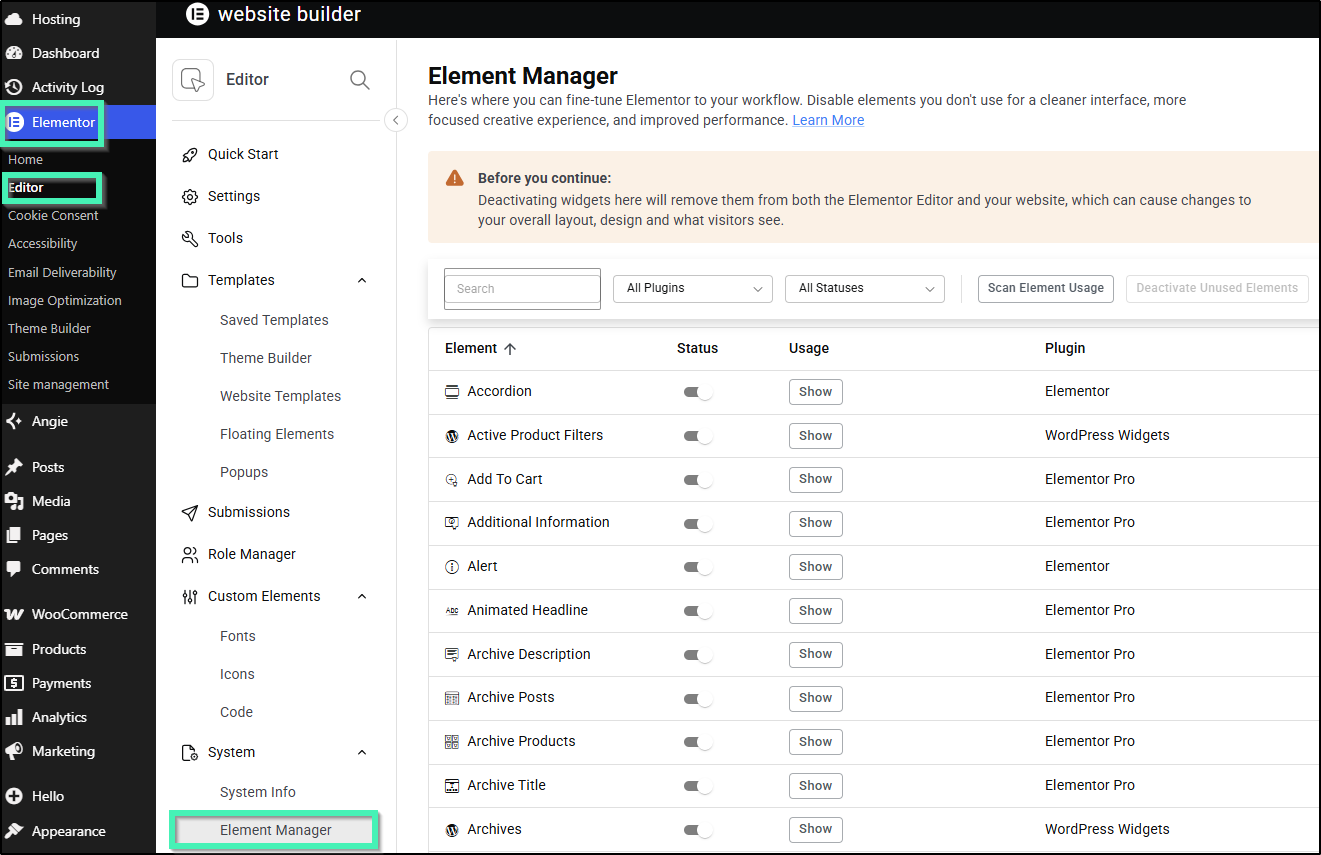
- Disable Custom Widgets: Deactivate suspected custom or third-party widgets in small batches, then refresh the editor window to isolate the crashing element.
- Clean Page Layout: Once the editor loads, update the page to save a clean version without the broken widget data. Then head back to Element Manager, reactivate the widget, and re-add it to your page from scratch.
- Check Saved Templates: Navigate to Elementor > Editor > Saved Templates, temporarily remove Display Conditions from custom headers, footers, or single-page templates, or switch the template status to Draft for the problematic page.
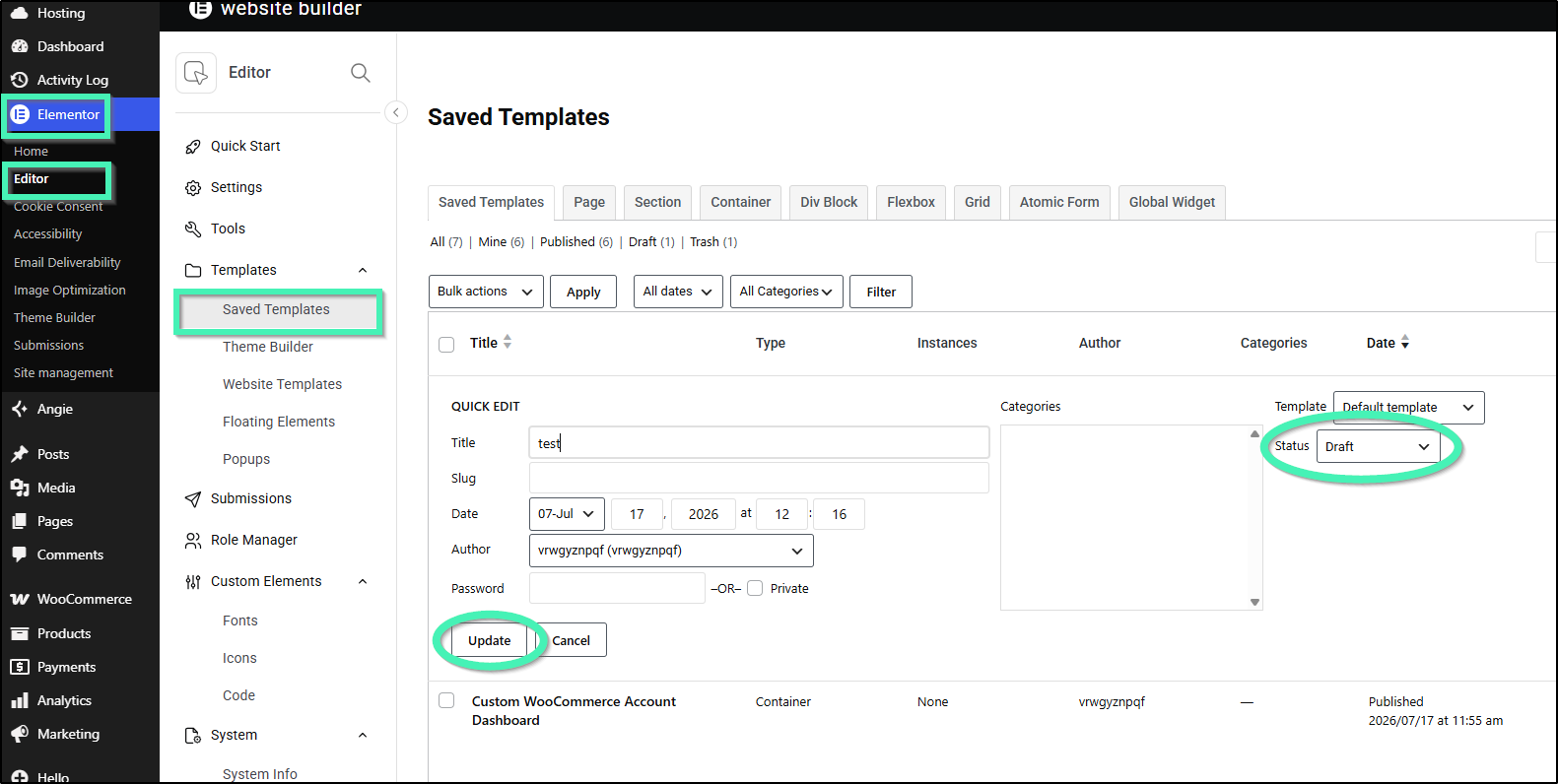
- Test Page Loading: Refresh the affected page. If the page loads successfully without the template assigned, the template itself is corrupted.
- Delete or Remove the Corrupted Template: Keep the corrupted template in Draft or move it to the Trash to completely break its association with the page layout.
- Recreate from Scratch: Rebuild the template as a brand-new Elementor template. Avoid copy-pasting massive layout chunks from the corrupted template, as this can migrate underlying corrupted JSON data or broken strings into your new layout.