Issue
You may need to reset your Elementor site back to the default settings after having installed a kit to learn, or have a sandbox site that has become cluttered with various colors and font styles.
Solution
Elementor uses a template called Default Kit located in your Saved Templates library. It includes the following:
- All the global values you assign to your site settings.
- All font preferences, colors, forms, buttons.
- Other settings.
This kit is required for Elementor styles to function properly. You can view and edit these global values at any time while editing a page by opening the Hamburger Menu (☰) in the top-left corner of the Editor and selecting Site Settings.
Below is an example of the Site Settings stored in this template: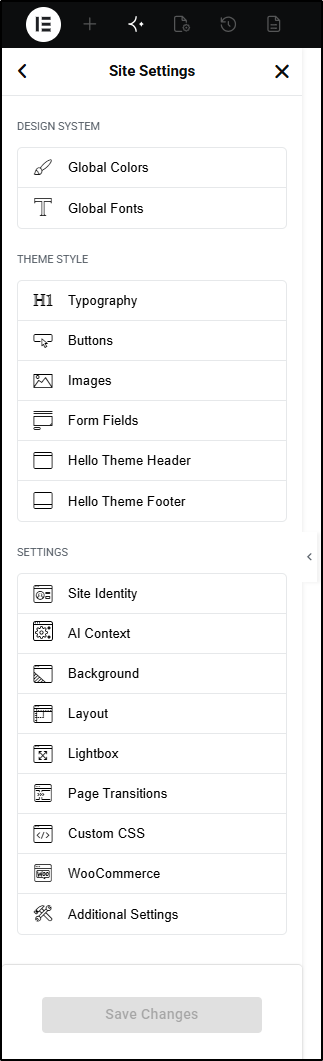
You need to delete and recreate the default kit to reset Elementor settings.
Delete default kit
Follow these steps:
- Navigate to Elementor > Editor >Templates > Saved Templates. List of saved templates appear.
- In the search box, type default kit. The Default Kit appears in the list.
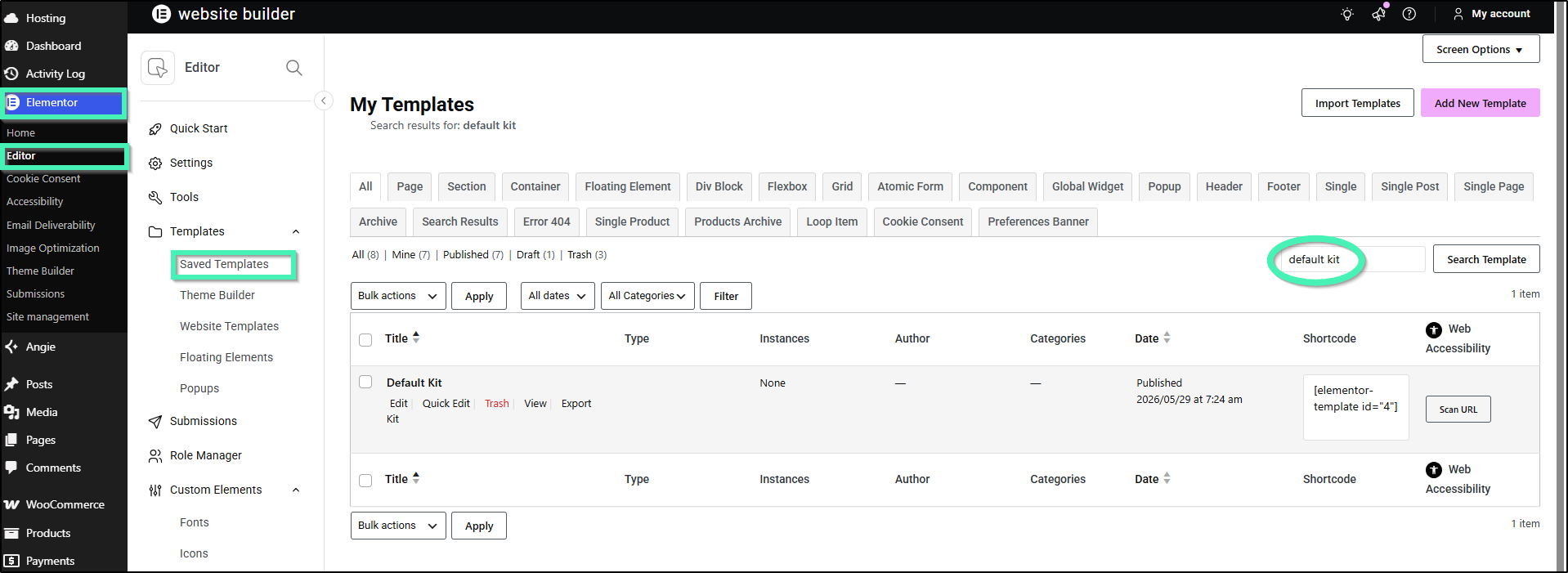
- Click Trash. A warning appears on your screen.
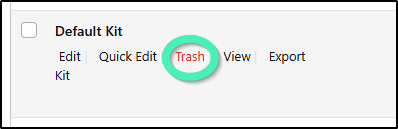
- Click Delete. The Default Kit will now be removed.
Recreate default kit
Follow the below steps to recreate the default kit:
- Navigate to Elementor > Editor > Tools > General. You should see an option to Recreate Kit.
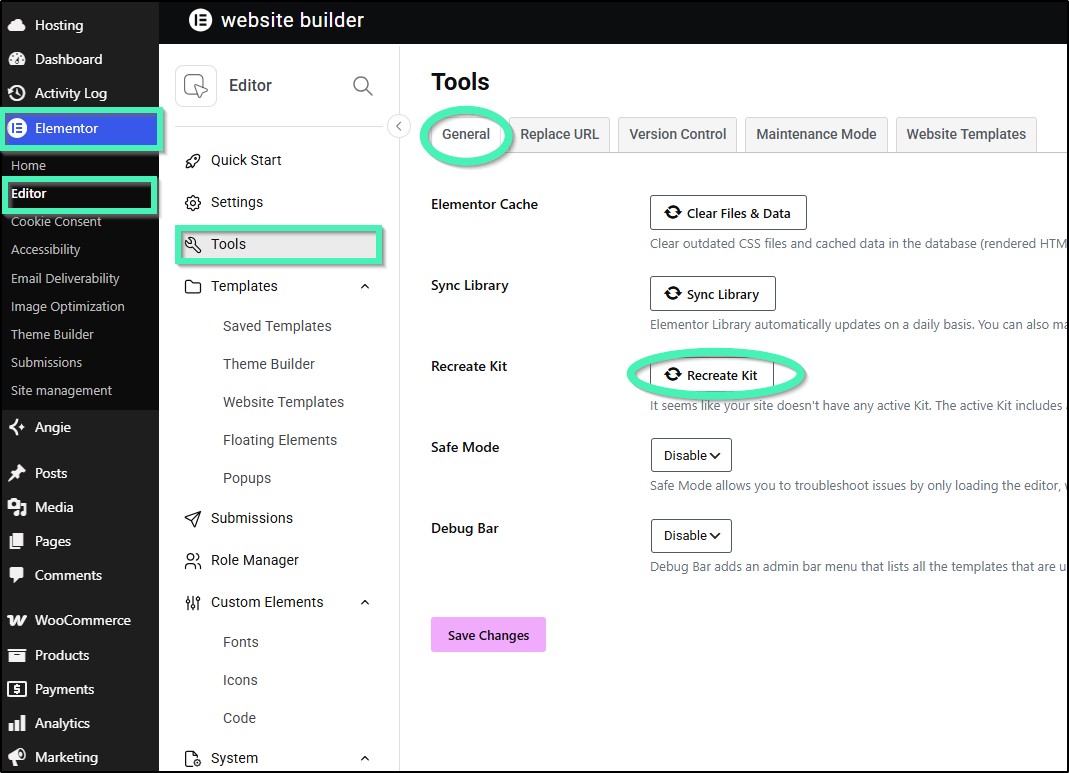
- Click Recreate Kit.
- Click Save Changes. The page reloads and resets all global site settings to default.