Building a website used to mean wrestling with code or templates that never fit what you needed. Wondering if AI can lift that weight? Yes, just not in the way you’d expect.
We’ve moved past basic generators that spit out a generic layout and call it done. In 2026, AI works as an active partner inside your content management system, building a custom, production-ready site without taking away your creative control.
Key Takeaways
- Agentic AI is the standard now, building fully editable, custom assets instead of static templates.
- Context is everything here. The best AI assistants work inside your WordPress dashboard, reading your plugins, theme, and structure.
- You keep full control. Your code stays open to edit visually or through conversation.
- Sandbox testing prevents errors, letting you preview changes safely before anything goes live.
- Developers are still vital. AI speeds up building but works best supporting human creativity and strategy.
The Evolution of AI Website Building
A few years ago, AI website design meant clicking a button and waiting for a basic template. Those early versions were rigid: move a button or add a custom calculator, and the whole thing fell apart.
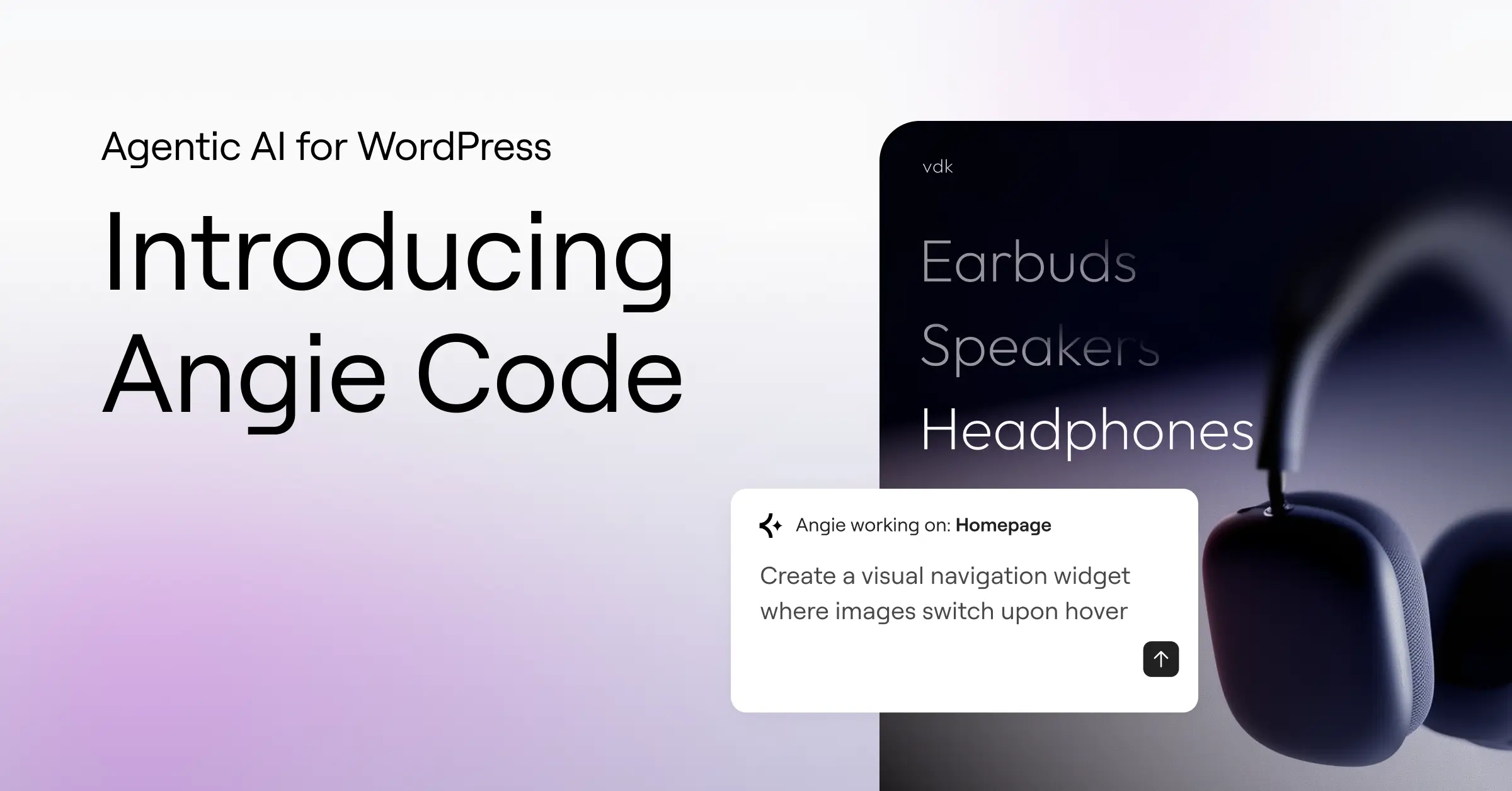
By 2026, that had changed. Agentic AI reads your plugins, database, and active theme, and instead of a separate, closed-off page, it builds widgets that blend into your workflow, with no new host or platform to learn.
This means you can describe a feature and see it live in minutes. You talk to the tool, refine the plan, and watch it assemble the pieces safely in the background.
Meet Angie: The WordPress-Native Agentic AI
Angie by Elementor stands out among the best tools for the job. Unlike older systems adapted from general-purpose tools, it’s built natively into WordPress by Elementor, succeeding the older Elementor AI system with a shift from text suggestions to functional code and site-wide operations.
Angie focuses entirely on technical creation: layout building, custom code, and admin tasks, not marketing copy or photo assets. Because it lives inside your dashboard, it inherits your site context: your plugins, theme, and content structure, with no new platform and no migration.
How the Process Works in Five Steps
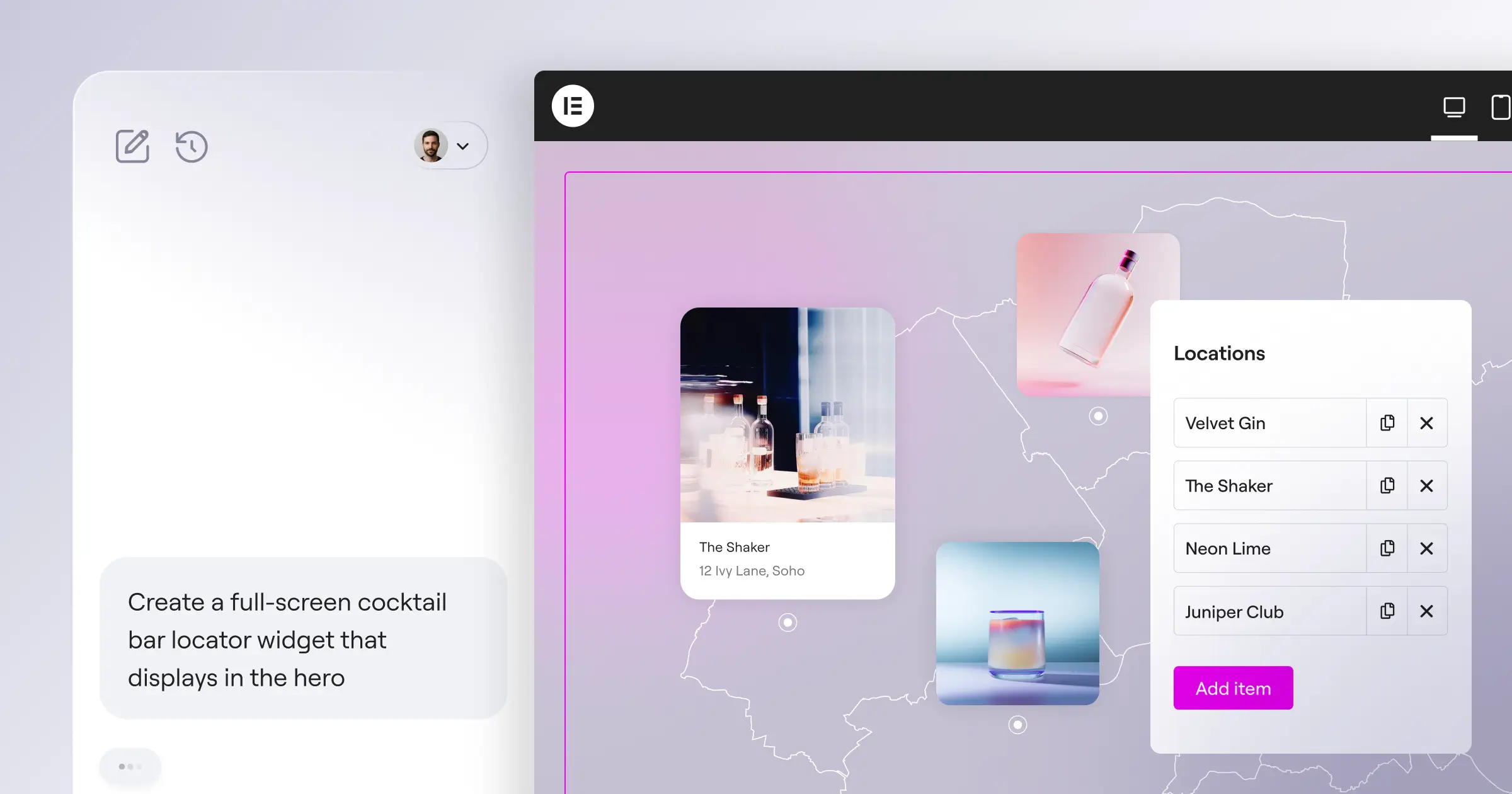
Building with this assistant is a structured conversation, no complex code required. Five steps keep you in control:
- Prompt – Describe what you want in plain English, or upload a screenshot or reference URL.
- Brief (Plan Mode) – For larger projects, the assistant asks clarifying questions to align on scope first.
- Connect – The tool connects itself to the parts of your WordPress setup it needs. No API keys, no manual setup.
- Execute – The assistant builds the asset with live tools and functional code, a working feature, not a mock-up.
- Iterate – You review the result and refine it through conversation until it works the way you want.
“The real power of agentic AI in web development isn’t just generating code. It’s the ability of the assistant to understand the relationship between your theme, your custom fields, and your database, keeping everything stable while you build.”
– Itamar Haim, WordPress AI Specialist
What Can AI Actually Build on Your Site?
It goes far beyond changing colors or font sizes. You can build production-ready assets that plug directly into your layout:
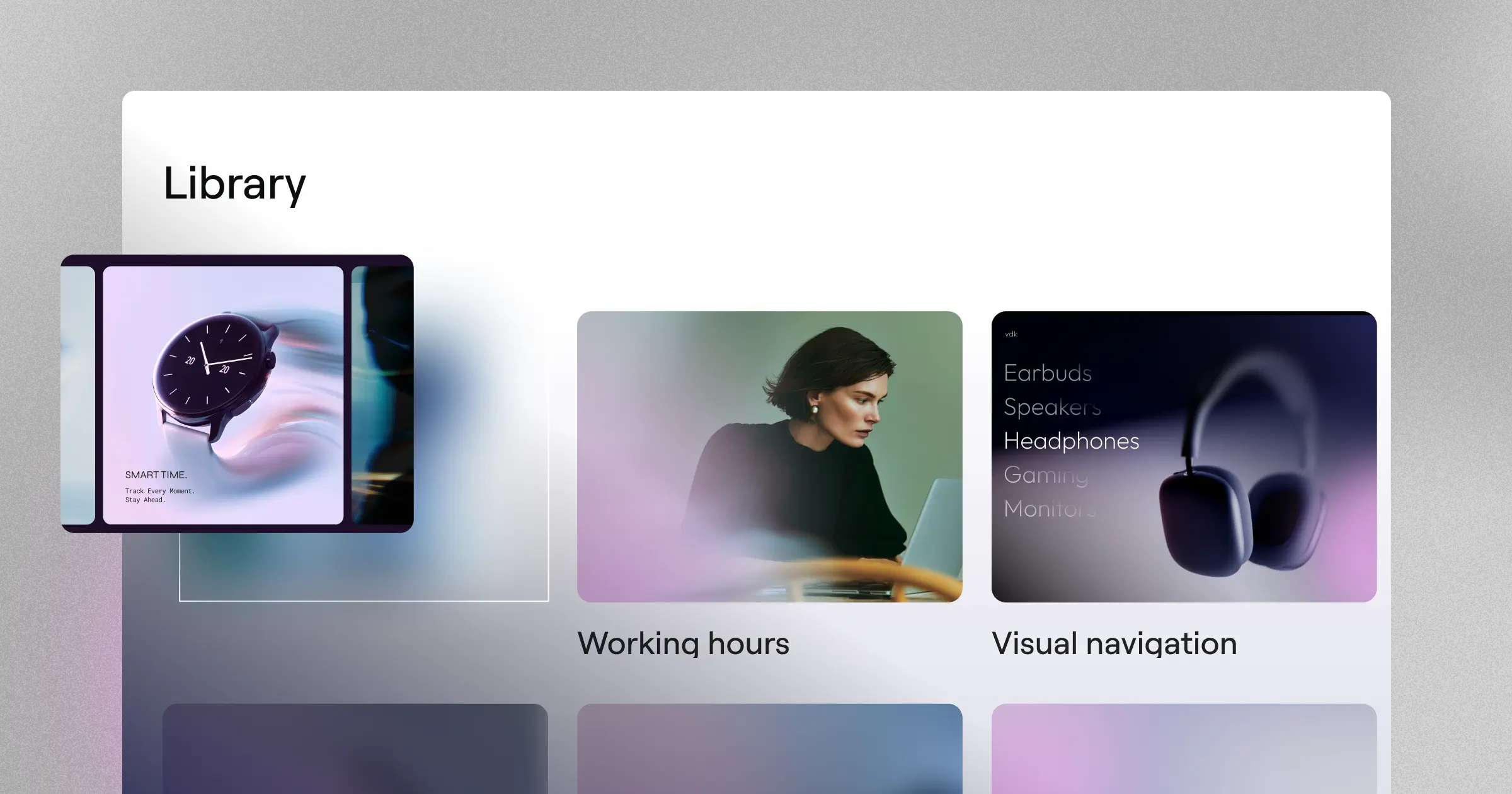
- Custom Widgets – Builds custom elements from scratch, or extends your layouts with new controls that stay editable in your visual builder.
- Admin Snippets – Customizes dashboard views, adds settings panels, and cleans up the back end for your clients.
- Custom Post Types – Defines and manages structured content, so it’s simple to organize data like portfolio items, team bios, or reviews.
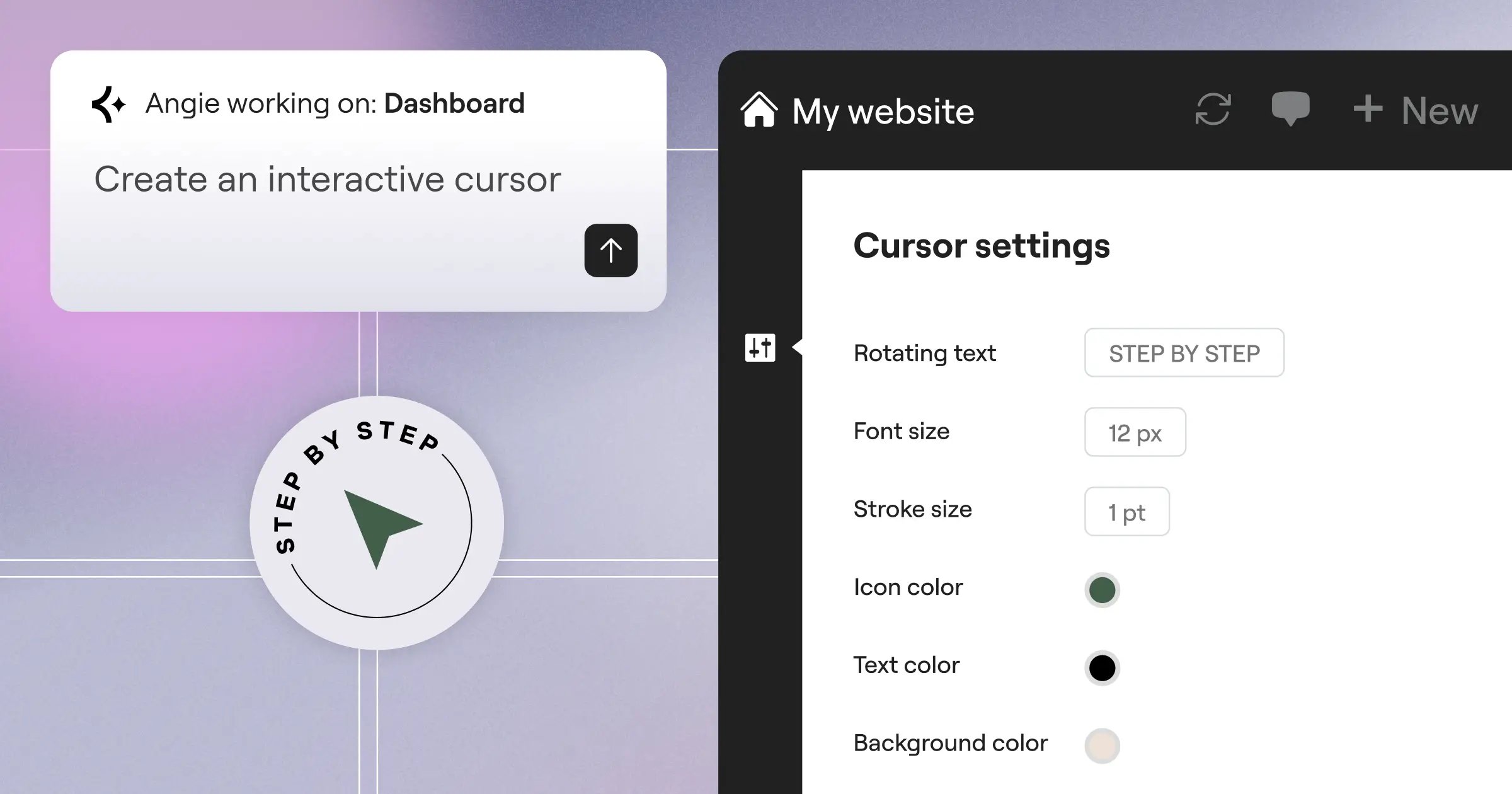
- Front-End Enhancements – Adds interactive behaviors, custom cursors, animations, and UI elements that make your site stand out.
- Visual Front-End Apps – Creates interactive quizzes, calculators, lead-capture forms, or fully customized 404 pages.
Say you want a custom calorie calculator for a fitness site. Instead of hunting for a heavy third-party plugin, ask the assistant to build one, style it visually, and keep the code open.
Managing Your Full Site Through Conversation
Building pages is only half the battle. Once a site is live, you’ve got to maintain it, and that’s where Super Admin Mode gets useful.
Super Admin Mode is opt-in, activated after a plan review and your explicit confirmation. It gives the assistant read-write access to your file system, database, and PHP layer, only after you confirm the steps.
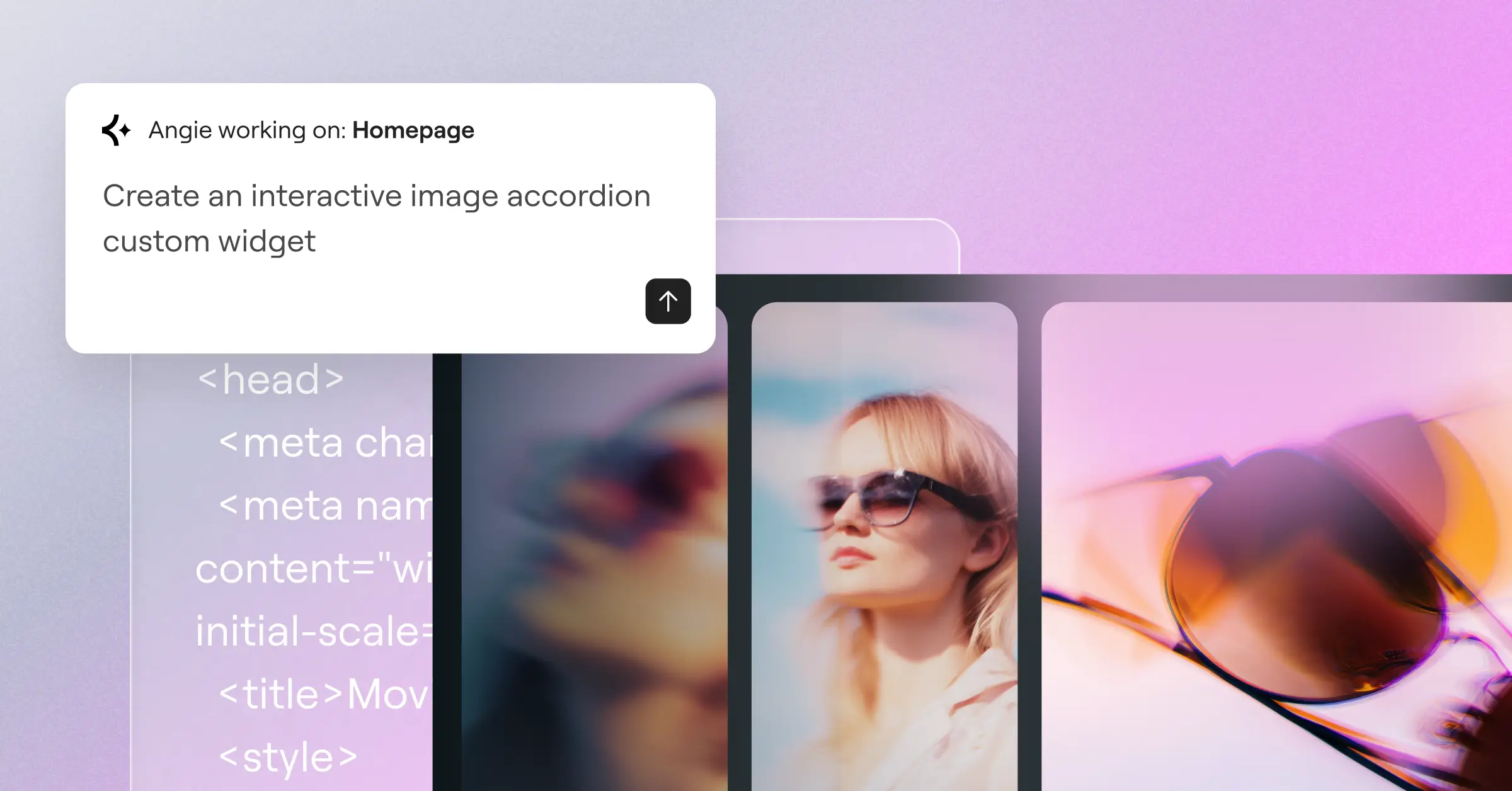
The assistant reads your data model, presents a clear plan, and takes no steps without your sign-off:
- Bulk Data Operations – Updates product prices, user roles, or metadata across hundreds of records from one prompt.
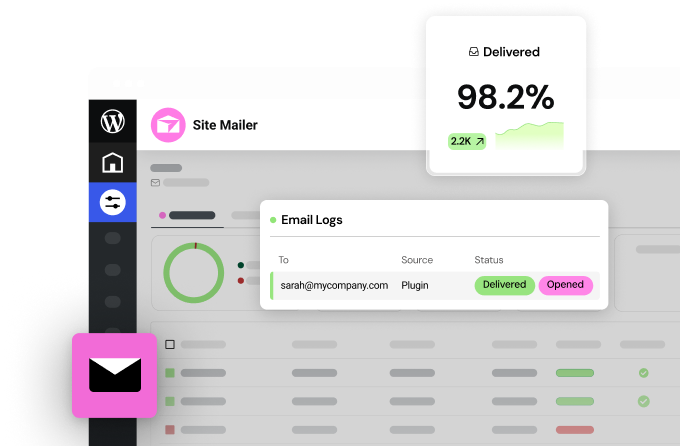
- Debug Technical Errors – Traces SMTP failures, finds PHP conflicts, and resolves API issues inside the chat.
- Fix SEO Gaps – Populates missing meta descriptions, creates redirects after restructuring, and standardizes URL slugs across your catalog.
Say you run a WooCommerce store with 200 products and need to raise prices in one category by ten percent. Ask the assistant instead of editing each product by hand: it previews the changes and applies them once you confirm.
Safety First: Sandbox Environments and Creative Control
One of the biggest worries about using AI on your site is breaking something. A single misplaced line of code can cause a white-screen error or disrupt checkout, which is why modern AI tools use a sandbox-first approach: every asset gets built, previewed, and tested in isolation, invisible to visitors, before you give final approval.
Once you approve the design, you still keep total creative control. Want to tweak a margin or color? Use the visual editor’s drag-and-drop tools instead of writing a new prompt, and hand the code to a developer later if you need to.
Comparing AI Website Solutions in 2026
Here’s how native agentic AI compares to traditional templates and proprietary builders.
| Feature / Capability | Native Agentic AI (e.g., Angie) | Proprietary AI Builders (e.g., Wix, Framer) | Traditional Page Templates |
|---|---|---|---|
| Platform Integration | Lives natively inside WordPress and Elementor | Locked into their specific proprietary platforms | Imported static layouts |
| Context Awareness | Reads your active plugins, database, and themes | Limited to basic built-in platform features | None (completely static start) |
| Code Customization | Fully open, editable code and custom widgets | Often restricted or closed off from deep edits | Requires manual HTML/CSS/PHP skills |
| Database & PHP Access | Safe, opt-in read-write access for bulk tasks | No direct server or database management | Requires external database management tools |
| Safety Features | Sandbox testing and human-in-the-loop approval | Direct publishing without a coded sandbox preview | Requires setting up a staging site manually |
Proprietary platforms work well for a quick, simple site if you don’t mind their hosting ecosystem. But building on WordPress with open files gives you more flexibility and room to grow.
When to Use AI and When to Hire a Developer
Let’s be honest about what AI can and can’t do. It makes building faster and works best guided by a skilled human, freeing up your time for design and strategy rather than replacing you. It handles repetitive tasks well, clean CSS, custom post structures, simple widgets in seconds, saving you from hunting plugin directories for single-purpose tools that might slow your site down.
That said, bring in a professional developer for complex integrations, deep security setups, and unique business logic. AI writes solid code, but it doesn’t understand your goals, audience, or brand the way a human expert does.
Step-by-Step: Building a Custom Widget with AI
Let’s walk through adding an interactive testimonial slider to your homepage that pulls reviews from your custom fields.
Step 1: Set Up Your Goal and Prompt the AI
Open your workspace and write a clear, detailed prompt: “I want a custom slider widget that displays client reviews, showing a star rating, the review text, the client’s name, and their profile picture, in a modern, clean design.” The more specific you are, the closer that first draft will be.
Step 2: Review the Brief and Align on Details
For a task like this, the assistant enters Plan Mode, outlining the widget’s structure and asking a few questions, like whether the slider should transition automatically or use navigation arrows. Reply in plain language.
Step 3: Let the AI Connect and Build
Once you agree on the plan, the assistant connects to your site’s styling system and builds the widget with clean, standard code matching your theme’s colors and fonts. No backend configuration needed.
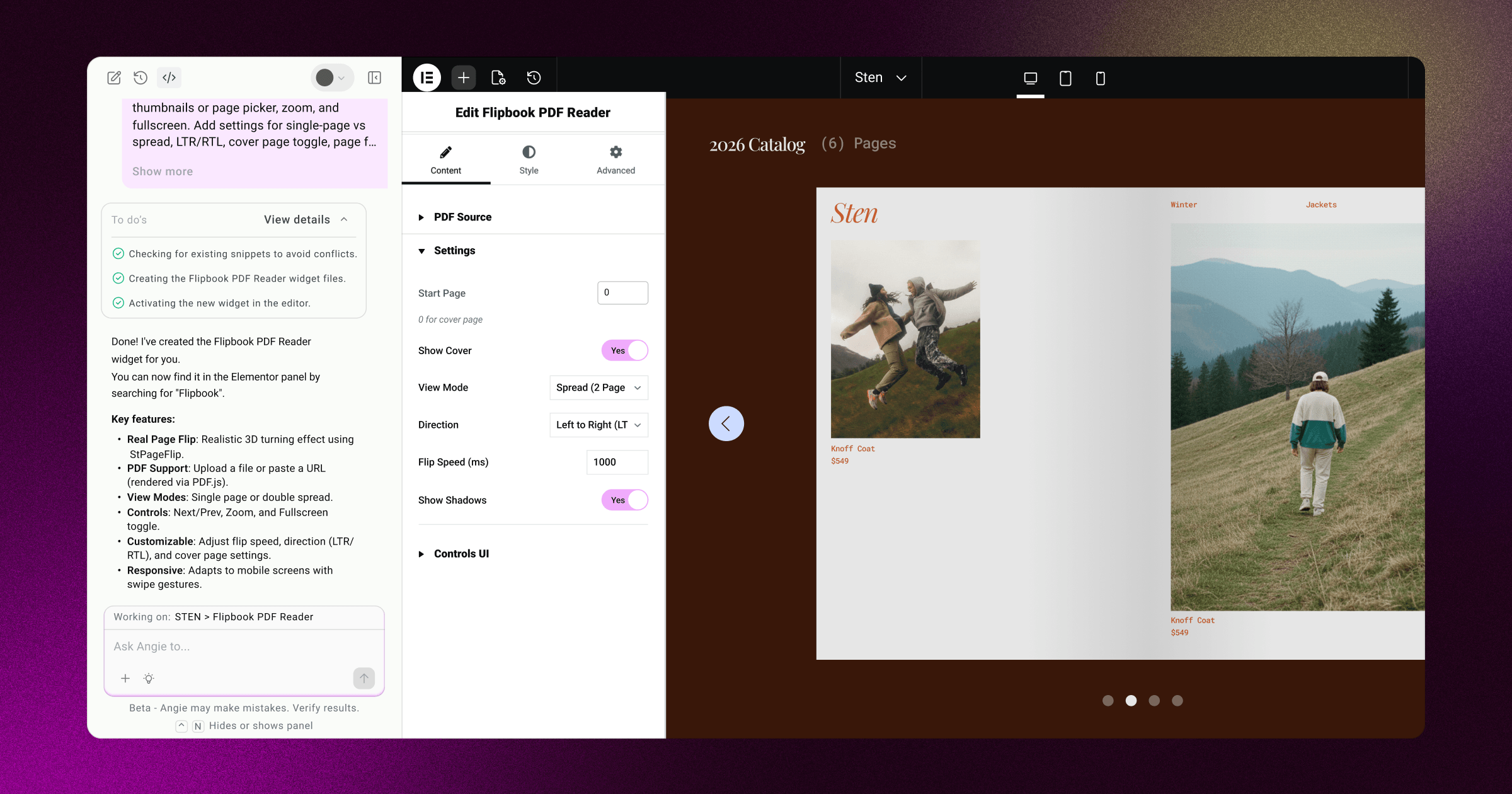
Step 4: Preview and Test in the Sandbox
The assistant shows a preview in a safe sandbox window. Click the arrows, check it on simulated mobile screens, and confirm the transition speed. Visitors can’t see it yet, so test freely.
Step 5: Apply, Style, and Publish
Want final tweaks? Ask the assistant, or open the widget in the Elementor visual builder and adjust padding, font weight, or background color. Once you’re happy, click apply and it goes live.
Best Practices for Using AI in Web Design
A few simple guidelines keep your site organized, secure, and fast. Be specific with your prompts: describe the column structure, alignment, and interactive behaviors you want, so the first draft lands closer to your vision. Use sandbox testing every time, buttons, forms, and mobile layout included, and keep your site lean by building custom elements instead of stacking single-purpose plugins.
And remember, Angie is included with Elementor Pro plans, so there’s no need to pay for external APIs. Check current plan details at elementor.com/pricing.
Embracing the Conversational Web
The question is no longer whether AI can build a website. It’s how deeply you want to collaborate with it. A WordPress-native assistant gives you the speed of automated code building plus the security and control of the world’s most popular content management system.
Conversational AI lets you focus on what matters: your ideas, your brand, your community, while the assistant handles the setups and repetitive maintenance.
Frequently Asked Questions
Can AI build a fully functional website on its own?
Yes, AI can build the pages, layouts, and interactive elements of a website. But you’ll still need to guide the design and define your business goals. It works best as a collaborative assistant, not a fully independent builder.
What does Angie actually do, and what falls outside its scope?
Angie builds functional assets, custom code, and site-wide systems, focusing on technical creation and admin tasks. It’s not a copywriting or photo asset tool, and that’s intentional.
What is the benefit of a WordPress-native AI tool?
A native tool like Angie reads your active setup, including your theme, plugins, and database, so the features it creates fit naturally with no migration needed.
Do I still need a web developer if I use AI?
AI lets you build custom widgets and manage database tasks on your own. But developers stay essential for advanced integrations, security planning, and unique business logic. Think of AI as a capable collaborator, not a substitute for expertise.
What is Super Admin Mode and is it safe?
Super Admin Mode is an opt-in feature that lets the AI read and write to your file system, database, and PHP layer. It runs on a plan-first model: the assistant presents a clear plan and won’t act until you approve it.
Will using AI-generated elements slow down my website?
No, Angie writes clean, production-ready code, and can actually speed up your site by cutting your reliance on heavy, single-use plugins.
Can I edit the code that the AI assistant creates?
Yes, the code is completely open. Refine it through conversation with the assistant, or open the elements in your visual editor and adjust them manually.