Key Takeaways
- Context matters most: AI assistants that inherit your site’s settings, theme, and plugin data give you far better results than generic generators starting from scratch.
- Sandboxing keeps you safe: Testing AI-built elements in an isolated sandbox before they go live protects your client sites while you experiment.
- Code control still matters: The best AI tools hand you clean, fully editable code instead of locking you into a closed environment you can’t customize.
- Bulk tasks get easier: You can now handle data updates, troubleshoot errors, and fix SEO gaps through a simple chat conversation.
The Evolving Role of AI in Freelance Web Design
If you design websites for a living, you’ve probably watched AI tools show up with a mix of excitement and skepticism. Will they help grow your business, or make it harder to land clients? Here’s the good news: once you know what each tool actually does, the path forward gets a lot clearer.
For years, building client sites meant grinding through the same work: setting up basic pages, configuring settings by hand, and chasing plugin conflicts. The first wave of AI builders offered generic templates and basic layouts, fine for a hobby project, but pretty flat for professional client work.
Things have changed since then. In 2026, the technology has moved from simple layout generators to genuinely smart design assistants. The goal isn’t letting a machine build a whole site at the push of a button; we know how generic those sites look. Instead, today’s tools help you build custom features faster and handle tedious operational work, freeing you up for creative decisions and client strategy.
As a freelancer, your value isn’t just in writing code or dragging boxes around a screen. It’s in turning your client’s business goals into a site that actually works. AI tools, at their best, help you deliver faster, but you still need to know which tools fit a professional workflow.
Top AI Website Builders and Assistants for Freelancers
Let’s look at the leading AI options available to web professionals today. When you’re juggling multiple client projects, you need tools that offer flexibility, security, and deep integration with the platforms you already use.
1. Angie by Elementor
If you build on WordPress, you already know Elementor. Its native agentic AI, Angie, inherits your active plugins, theme, and live data instantly, so there’s no migration and nothing new to learn. It works inside your setup to build custom features through conversation.
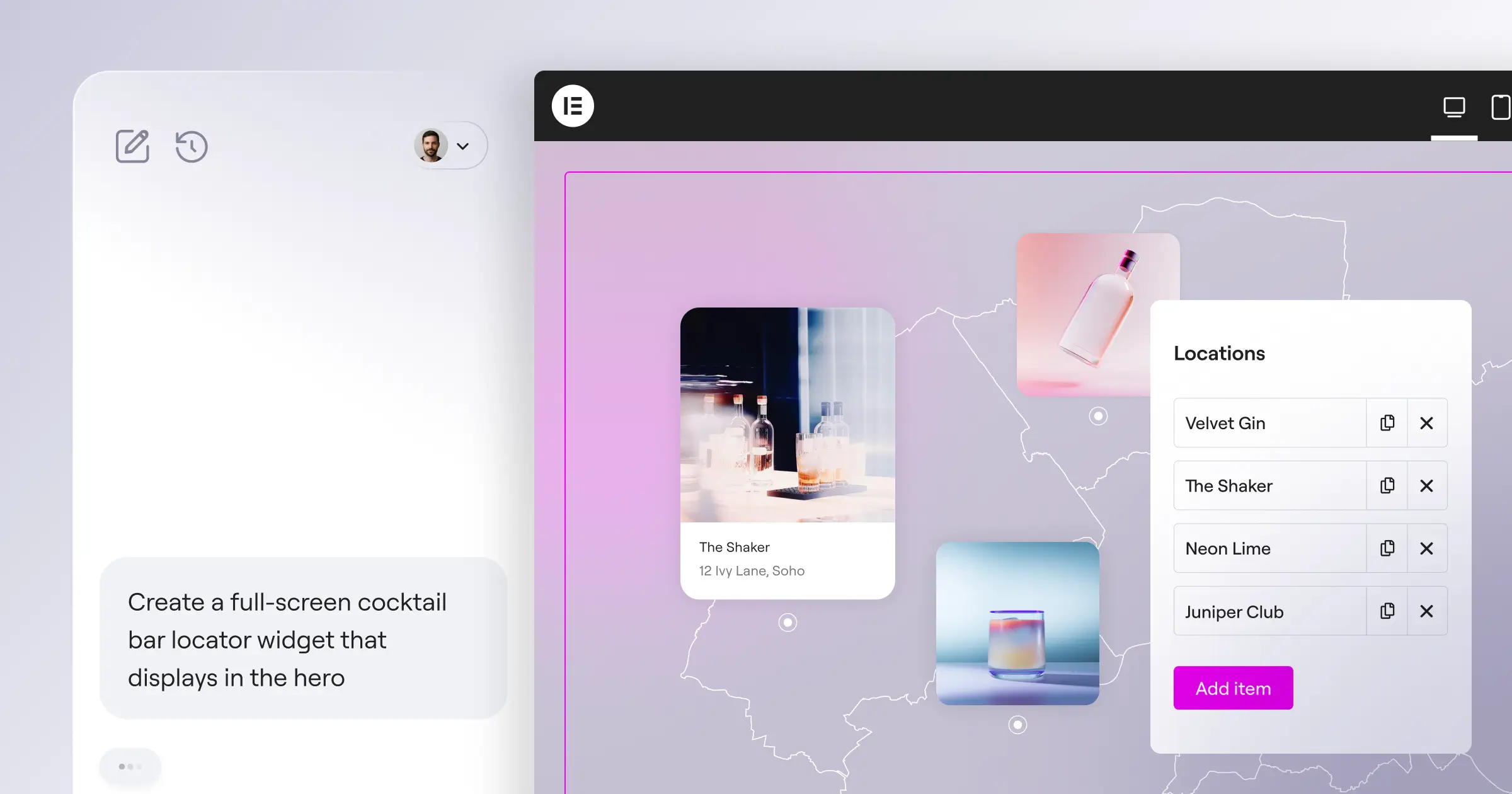
Angie follows a clear five-step process:
- Prompt: Describe what you want, or paste a screenshot or URL.
- Brief (Plan Mode): For bigger tasks, Angie clarifies scope first.
- Connect: Angie links to your WordPress tools, no API keys needed.
- Execute: Angie does the real work with your live tools.
- Iterate: Refine the result by chatting until it’s right.
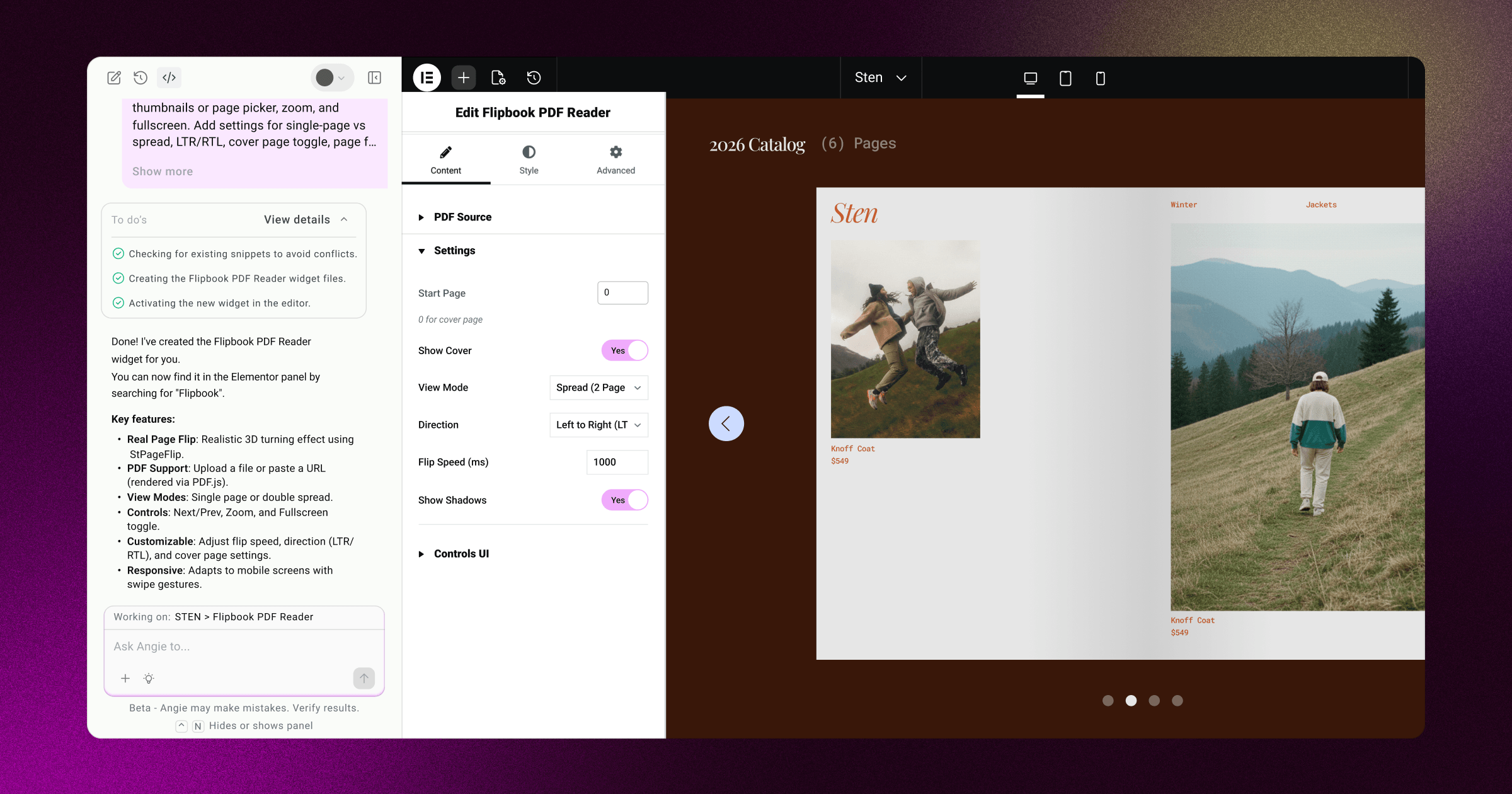
Angie’s Code engine builds clean, editable elements, including:
- Custom Elementor widgets: Builds from scratch or extends existing ones with new controls.
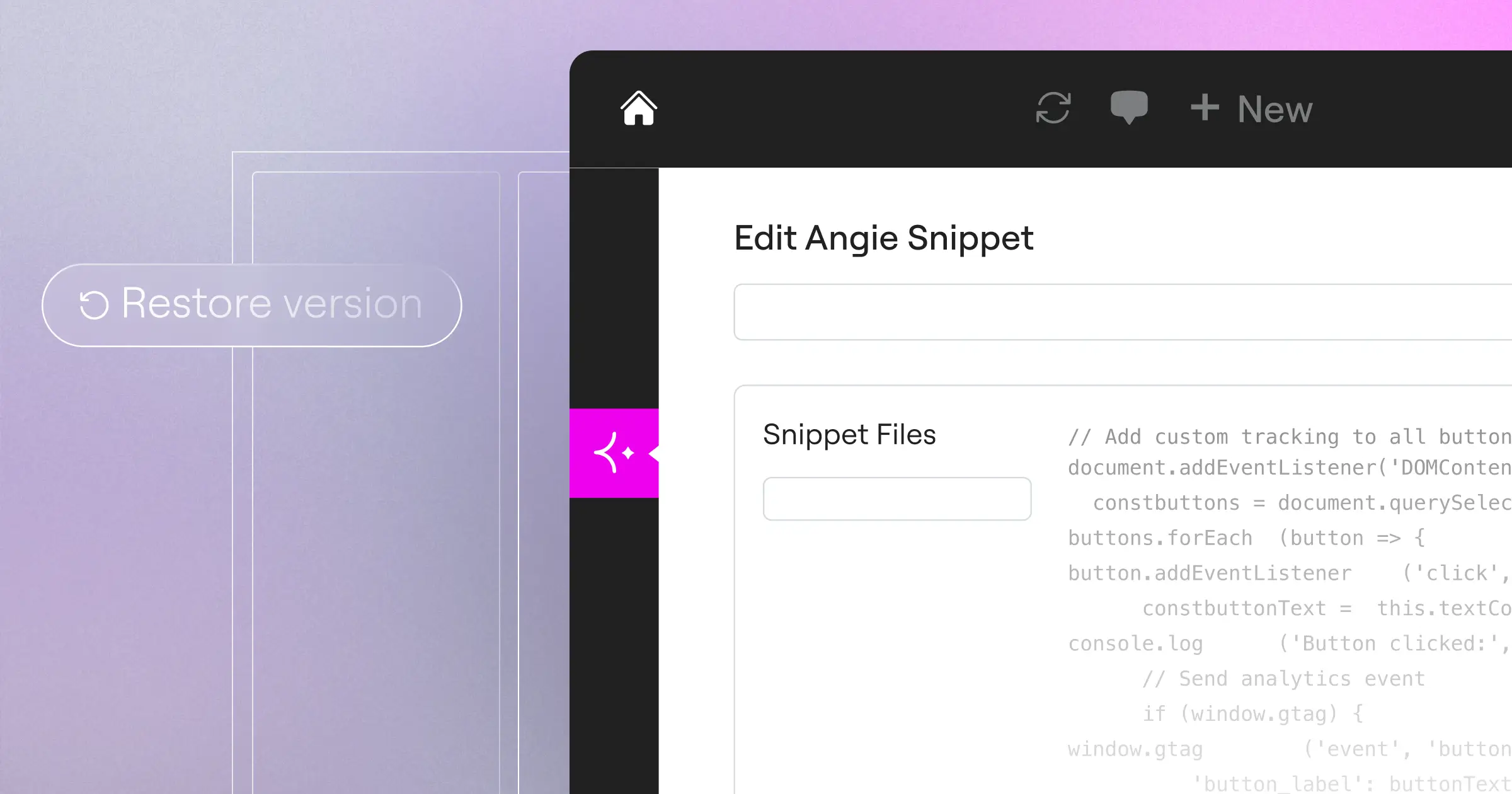
- WordPress admin snippets: Personalizes your dashboard or adds settings panels.
- Custom post types and fields: Organizes complex data without manual database work.
- Front-end visual enhancements: Adds custom cursors, scroll effects, and animations.
- Interactive visual apps: Builds calculators, quizzes, and custom 404 pages.
Pros:
- Uses your real site settings and theme for consistent designs.
- Builds and tests everything in a sandbox before it goes live.
- Keeps you in control: edit code directly or use the visual editor.
- Connects with WooCommerce, Gutenberg, ACF, WS Form, GiveWP, LearnDash, and The Events Calendar.
Cons:
- Built for WordPress and Elementor, so it won’t help on closed SaaS platforms.
- Focuses on site architecture and code, not article copy or stock images.
Verdict: Angie by Elementor is a genuinely strong pick for WordPress freelancers, respecting your workflow while keeping code open.
2. Wix Studio AI
Wix Studio suits agencies who prefer a hosted, closed-platform ecosystem, with built-in AI that speeds up responsive design across screen sizes.
Pros:
- Adjusts layouts for mobile, tablet, and desktop fast.
- Includes AI for basic text and image edits.
- Fully managed, so you skip hosting and server upkeep.
Cons:
- Locked into Wix hosting, hard to migrate elsewhere.
- Limited database access makes custom structures tough to build.
- Custom code integration is more restricted than open-source WordPress.
Verdict: Wix Studio AI suits designers who want a managed, closed environment without deep database needs.
3. Framer AI
Framer grew from a prototyping tool into a full website builder, with AI that turns a prompt into a styled page fast.
Pros:
- Great for animated, visually striking marketing pages.
- The layout generator produces solid color and typography pairings.
- Copies designs directly from Figma to speed up early work.
Cons:
- Less suited to content-heavy sites or advanced e-commerce.
- Exporting code for your own infrastructure is limited.
- Clients face a steeper learning curve for simple text edits.
Verdict: Framer AI suits high-end portfolios and landing pages, but can feel limiting for complex sites with custom data needs.
4. Squarespace Blueprint AI
Squarespace’s Blueprint system guides setup with AI, helping pick layouts and brand styles through guided questions.
Pros:
- Structured onboarding that’s friendly for beginners.
- Produces clean, classic styles matching the Squarespace look.
- Includes solid basic e-commerce out of the box.
Cons:
- Lacks the deep customization agencies often need.
- You can’t export the underlying code.
- Feels restrictive for highly specific custom integrations.
Verdict: Squarespace Blueprint AI suits simple client projects on modest budgets, but lacks depth for advanced custom work.
The Core Pros of Using AI in Your Design Workflow
Bringing AI into your routine offers real advantages for a more profitable freelance business.
First, it saves real time on the initial build: you can generate layouts or widgets in minutes instead of starting from a blank screen, so you show clients mockups faster.
Second, tools now let you build custom functionality that used to need deep programming skill. With Angie by Elementor, you describe what you need and get back a fully editable widget.
Third, AI makes maintenance far less stressful: instead of chasing a PHP conflict for hours, you can find and fix the issue fast through conversation.
The Core Cons and Hidden Pitfalls of AI Builders
The benefits are real, but leaning too hard on AI brings challenges worth watching for.
One drawback of closed AI builders is the lack of code portability. Build a client site on a platform tied to its own AI generator, and you can’t easily move it elsewhere if the client wants to switch later.
Some generic AI tools also produce heavy, non-standard code that can introduce security gaps or slow page speed, which is why native tools matter so much.
Finally, there’s a real risk of visual sameness: many AI builders lean on similar patterns, so always review and refine AI layouts. Human creative direction still matters.
Top AI Builders Side-by-Side
To help you pick the right tool for your stack, here’s how these AI website building systems compare across the criteria that matter most to professionals.
| AI Platform | System Type | Code Control | Site Context Awareness | Testing Environment | Extensibility |
|---|---|---|---|---|---|
| Angie by Elementor | Open Source (WordPress) | Full (Clean, fully editable) | High (Inherits plugins, theme, & database) | Isolated Sandbox (Before live deployment) | High (Connects to ACF, WooCommerce, etc.) |
| Wix Studio AI | Closed SaaS | Limited (Platform-specific) | Medium (Wix ecosystem only) | Standard staging pages | Medium (Wix App Market only) |
| Framer AI | Closed SaaS | Low (Export is limited) | Low (Design-focused) | Preview mode only | Low (Mainly visual integrations) |
| Squarespace Blueprint | Closed SaaS | Very Low (Template locked) | Low (Onboarding questionnaire) | Standard trial site | Low (Built-in extensions only) |
Super Admin Mode and Deep Site Management
For advanced developers and busy agency owners, simple front-end tools aren’t enough; you need to manage data, fix errors, and tune SEO at scale. That’s where the opt-in Super Admin Mode in Angie changes your workflow.
Super Admin Mode gives the assistant read-write access to your site’s files, database, and PHP layers. It’s entirely opt-in and never runs without your explicit permission. Before doing anything, Angie reads your site’s data model, shows a clear plan in the chat, and waits for your go-ahead.
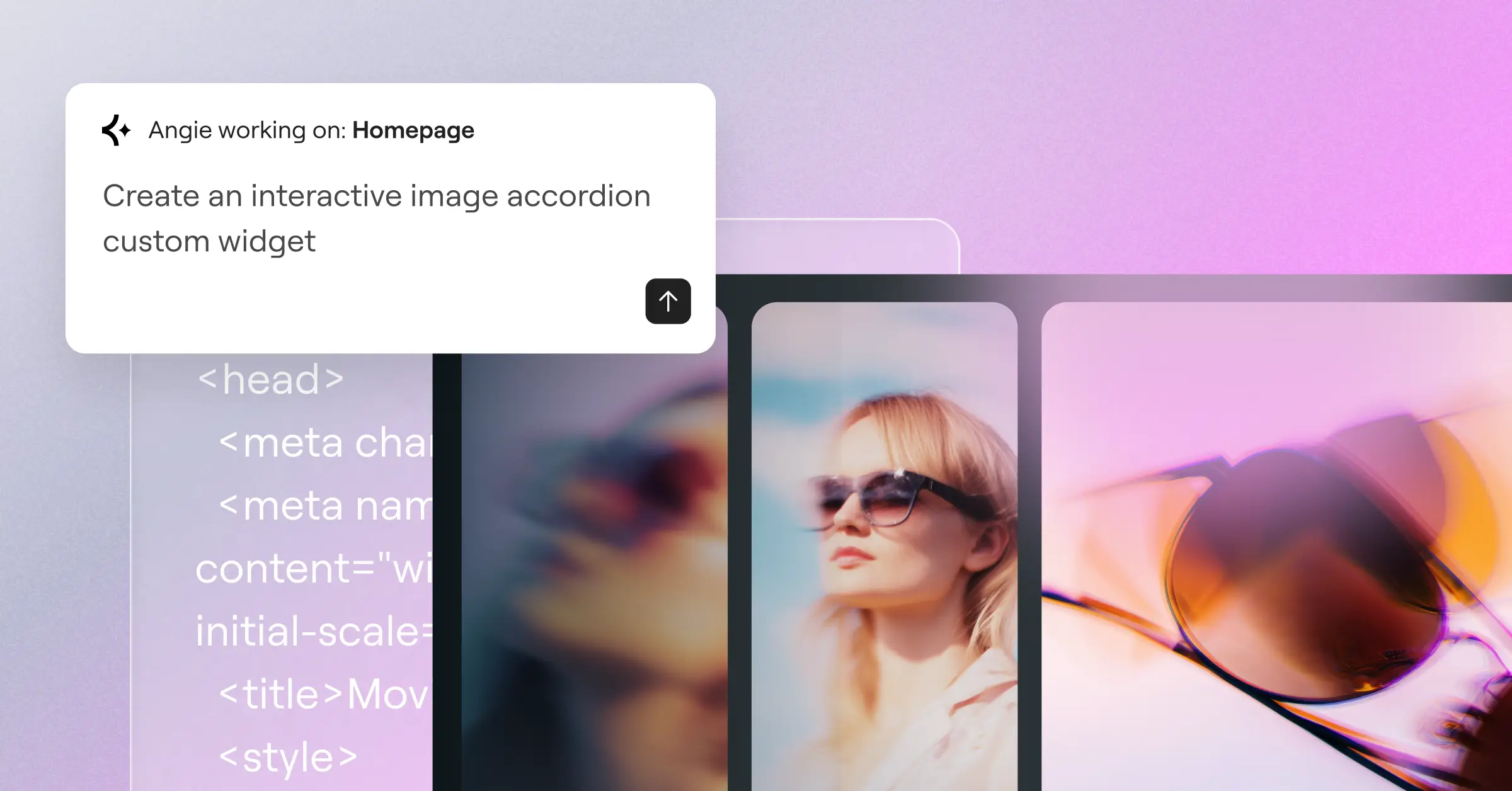
This deep access lets you handle tasks that used to take hours:
- Bulk data operations at scale: Modifies WooCommerce prices, updates user roles, or changes metadata across hundreds of posts from one prompt.
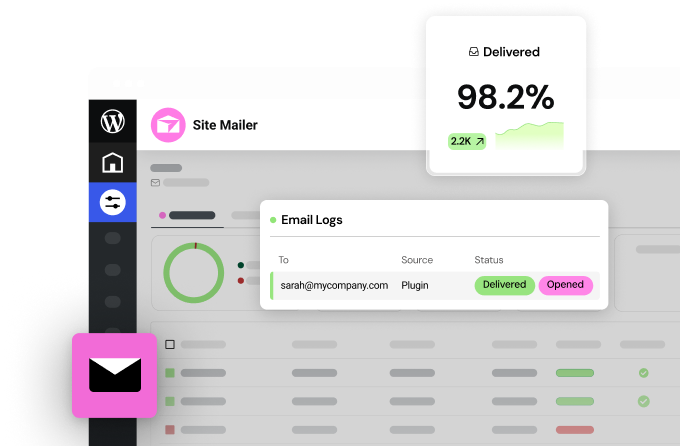
- Deep error tracing: Tracks SMTP failures, plugin conflicts, and API drops in the chat.
- Site-wide SEO fixes: Finds missing meta descriptions, writes redirects, and corrects slugs site-wide.
Every step runs in a sandbox first, so you can feel confident before anything touches your live database.
“The future of web design isn’t about AI replacing the human designer; it’s about smart tools handling the repetitive setup, data management, and custom widget creation. This shift frees up web professionals to focus on what clients actually pay for: strategy, unique branding, and user experiences that convert.”
– Itamar Haim, WordPress AI Specialist
How to Choose the Right AI Tool for Your Freelance Stack
Adding new tools can feel like a lot at first, but you don’t have to change everything overnight. Here’s a simple three-step way to pick the right AI tools for your business:
- Evaluate your existing platforms: If you build on WordPress, look for a native assistant like Angie. If you build simple portfolio sites on SaaS platforms, a dedicated layout generator may suit you fine.
- Start with repetitive tasks: Don’t let AI design a whole site right away. Use it to build one widget or automate a bulk update on a test site first, to build trust before client work.
- Prioritize safety and control: Pick a tool with a sandboxed testing environment and clean, editable code, so you can always deliver what your client needs.
Frequently Asked Questions
Is Angie by Elementor included in my current subscription?
Yes, Angie comes with Elementor Pro plans, no separate subscription needed. Elementor also bundles hosting, the page builder, and these AI tools in one plan.
Can Angie write blog posts or create marketing images for my site?
No, Angie is built for site development, custom code, and layout, not article copy or images, keeping it focused on clean site structures and admin integrations.
Do I need to be an expert programmer to use Super Admin Mode?
You don’t need to be a master programmer, but knowing how WordPress is structured helps. Angie shows a clear plan before acting, so you can review and approve every step.
Will using AI design tools make my client sites run slower?
It depends on the tool. Generic AI generators can inject code that slows sites down, but Angie produces clean, lightweight code built for Elementor and WordPress. Sandbox testing confirms performance first.
Is my client’s site data safe when using these AI assistants?
Yes, security comes first. Angie builds and tests every asset in an isolated sandbox and never touches your live site until you approve the plan. Super Admin Mode is opt-in only.
Can I edit the code that the AI assistant generates?
Absolutely. Every widget, snippet, and asset Angie builds is fully open and editable, through conversation, your code editor, or the visual Elementor editor.
Does using AI mean I won’t need to hire web developers anymore?
No, these tools support web creators, not replace them. AI speeds up repetitive tasks, but complex projects still need human expertise.
What WordPress plugins does Angie integrate with?
Angie connects with WooCommerce, Advanced Custom Fields (ACF), Gutenberg, WS Form, GiveWP, LearnDash, and The Events Calendar.
Can I use Angie to migrate an existing website to WordPress?
Angie isn’t an automated migration tool, but it makes migration easier. Paste a reference URL or upload screenshots, and Angie helps rebuild those layouts inside your new Elementor-powered WordPress site.